Nissan Sentra B18 (2020-2025) Owner's Manual: USB (Universal Serial Bus) Connection Port
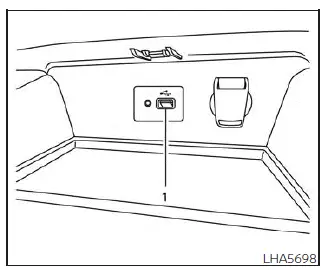
- Type-A.
Connecting a device to the USB Connection Port
WARNING
Do not connect, disconnect, or operate the USB device while driving. Doing so may distract the driver. If distracted, you could lose control of your Nissan Sentra, which may result in an accident causing serious injury or death.
CAUTION
- To prevent damage and avoid loss of functionality when using a USB device with the Nissan Sentra audio system, carefully observe the following precautions.
- Do not force the USB device into the USB port. Inserting the USB device at an angle or upside down may damage the port. Always ensure that the USB device is correctly aligned and fully seated in the USB port.
- Do not pull on the USB port cover (if so equipped) when removing the USB device. Doing so may damage both the port and the protective cover.
- Do not leave the USB cable in a location where it may be pulled unintentionally.
Accidental pulling of the cable may damage the USB port.
NOTE:
For optimal performance, it is recommended to use original manufacturer-approved cables, which are sold separately. A USB Type-C to USB Type-A adapter (or the reverse) may be available; however, compatibility and performance may vary depending on the device.
For additional guidance, refer to the device manufacturer’s owner information regarding proper use, handling, and care of the USB device.
The USB connection port in the Nissan Sentra is located beneath the heater and air conditioner controls. Insert the USB device directly into the connection port.
When a compatible USB storage device is connected, supported audio files stored on the device can be played through the Nissan Sentra vehicle audio system.
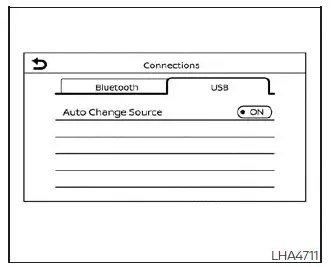
USB connections screen
Press the
 MENU button and touch the "Connections" key, or press the "Settings" key and then
touch the "Connections" key to adjust USB-related settings.
MENU button and touch the "Connections" key, or press the "Settings" key and then
touch the "Connections" key to adjust USB-related settings.
- Auto Change Source
Touch "ON" or "OFF" to configure whether the Nissan Sentra audio system automatically switches to USB audio when a USB memory device or an iPod is connected using a USB cable.
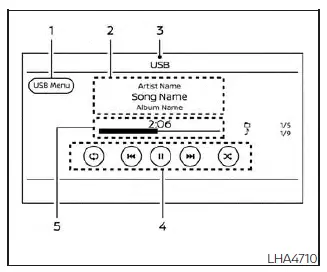
USB screen
- "USB Menu" key
Touch to display the USB Menu screen. - Track information
Displays available track details such as song title, artist name, and album name. - Audio source indicator
Shows that USB is the currently selected audio source. - USB operation keys
Touch to control playback functions for USB audio. - Play time and progress bar
The elapsed play time of the track is displayed.The progress bar visually indicates the current playback position within the track.
USB operation keys
Touch the on-screen keys to control playback functions such as play, pause, skip, and repeat while using USB audio in the Nissan Sentra.
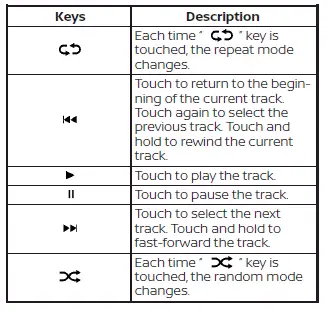
USB memory device player operation
Activation and playing
Connecting a USB memory device to the port will automatically begin playback of compatible audio files.
USB audio can also be accessed by touching the "USB" key on the Menu screen or by selecting USB from the Launch Bar of the Nissan Sentra audio system.
To pause playback of the USB memory device, touch the "
 "
key. To resume playback, touch the "
"
key. To resume playback, touch the "
 "
key.
"
key.
Skipping tracks
To skip tracks, press the
 or
or
 buttons on the control panel, or repeatedly touch the "
 "
or "
"
or "
 "
keys on the display until the desired track is selected.
"
keys on the display until the desired track is selected.
NOTE:
Depending on the playback state, skipping to the previous track may require pressing the button or touching the key twice.
Pressing the button or touching the key once may restart the currently playing track from the beginning.
Fast-forwarding/rewinding
To fast-forward or rewind the current track, press and hold the
 or
or
 buttons on the control panel, or touch and hold the "
 "
or "
"
or "
 "
keys on the screen.
"
keys on the screen.
Changing play mode Repeat mode
Touch the "
 "
key on the USB screen to change the repeat playback mode.
"
key on the USB screen to change the repeat playback mode.
The following repeat modes are available:
All: Repeats all tracks
1 Folder: Repeats the selected folder or sub-folder
1 Track: Repeats the current track
Random mode
Touch the "
 "
key on the screen to change the random playback mode as follows:
"
key on the screen to change the random playback mode as follows:
"
 "
not highlighted: Random off
"
not highlighted: Random off
"
 "
highlighted: Random on
"
highlighted: Random on
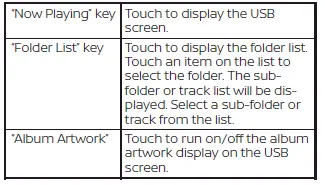
USB menu
Touch the "USB Menu" key on the USB screen to display additional USB playback options and settings.
Other materials:
Rear Air Spoiler
Exploded View
Exploded View
1.
Trunk lid
2.
Rear air spoiler
3.
Double ...
Laser/radar (distance Sensor)
C2580-44 Control Unit
Dtc Description
DTC Description
DTC DETECTION LOGIC
DTC
CONSULT screen terms
(Trouble diagnosis
content)
DTC dete ...
Dtc/circuit Diagnosis
Eco Mode Switch
Component Function Check
Component Function Check
CHECK ECO MODE SWITCH OPERATION
Ignition switch ON.
Check ECO mode indicator turns ON/OFF
on combination meter when turn ECO mode switch
O ...