Nissan Sentra B18 (2020-2025) Owner's Manual: iPod* player operation
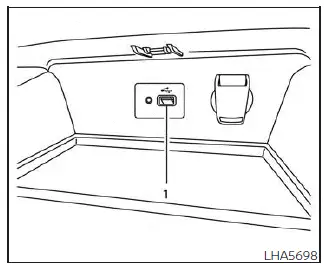
- Type-A.
Connecting iPod
WARNING
Do not connect, disconnect, or operate the USB device while driving. Doing so may distract the driver. If distracted, you could lose control of your Nissan Sentra, which could result in an accident causing serious injury.
CAUTION
- Do not force the USB device into the USB port. Inserting the USB device at an angle or upside down may damage the port. Always ensure that the USB device is connected correctly to the USB port in the Nissan Sentra.
- Do not pull on the USB port cover (if so equipped) when removing the USB device. This may damage the port or the protective cover.
- Do not leave the USB cable in a location where it could be pulled unintentionally.
Accidental pulling on the cable may damage the USB port.
NOTE:
For optimal performance, it is recommended to use original manufacturer-approved cables, which are sold separately. A USB Type-C to USB Type-A adapter (or vice versa) may be available; however, compatibility and results may vary depending on the device.
For additional information, consult the device manufacturer’s documentation regarding proper use, handling, and care of the iPod.
To connect an iPod to the Nissan Sentra so that it can be controlled using the vehicle’s audio controls and display screen, use the USB connection port located beneath the heater and air conditioner controls.
Connect the iPod-specific end of the cable to the iPod and the USB end of the cable to the vehicle’s USB connection port. If your iPod supports charging via USB, its battery will charge while connected to the Nissan Sentra with the ignition switch in the ON position.
While the iPod is connected to the Nissan Sentra, it can only be operated using the vehicle’s audio system controls and touch-screen display.
To disconnect the iPod from the vehicle, first remove the USB end of the cable from the USB connection port, then disconnect the cable from the iPod.
* iPod is a trademark of Apple Inc., registered in the U.S. and other countries.
Compatibility
The following models are compatible with the Nissan Sentra iPod integration system:
- iPhone 11 Pro Max
- iPhone 11 Pro
- iPhone 11
- iPhone XR
- iPhone XS Max
- iPhone XS
- iPhone X
- iPhone 8 Plus
- iPhone 8
- iPhone 7 Plus
- iPhone 7
- iPhone SE
- iPhone 6s Plus
- iPhone 6s
- iPhone 6 Plus
- iPhone 6
- iPhone 5s
- iPhone 5c
- iPhone 5
- iPod touch (6th generation)
* Some features of the iPod may not function fully depending on model and software version.
Ensure that the iPod firmware is updated to the latest supported version. The Lightning connector is compatible with iPhone (5 through 11) and iPod touch (6th generation).
USB functionality works with iPhone (5 through 11) and iPod touch (6th generation).
All Android devices running Android OS 5.0 or later are also supported by the Nissan Sentra audio system.
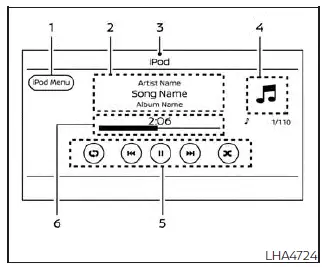
iPod screen
- "iPod Menu" key
Touch to switch to the iPod Menu screen. - Track information
Track details such as song title, artist name, and album name are displayed. - Audio source indicator
Indicates that the iPod is the currently selected audio source. - Album artwork
Album artwork is displayed when available and when the feature is enabled. - iPod operation keys
Touch to control iPod playback functions. - Play time and progress bar
The elapsed play time of the track is displayed.The progress bar indicates the current playback position.
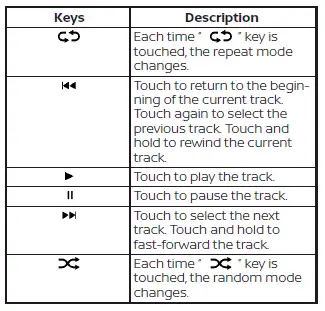
iPod operation keys
Use the on-screen keys to control playback functions such as play, pause, skip, and browsing while using the iPod in the Nissan Sentra.
iPod memory device player operation
Activation and playing
Connecting the iPod to the Nissan Sentra using a USB cable will automatically activate iPod mode.
The iPod can also be accessed by touching the "iPod" key on the Menu screen or by selecting iPod from the Launch Bar.
Skipping tracks
To skip tracks, press the
 or
or
 buttons on the control panel, or repeatedly touch the "
 "
or "
"
or "
 "
keys on the display until the desired track is selected.
"
keys on the display until the desired track is selected.
NOTE:
Depending on operating conditions, skipping to the previous track in the Nissan Sentra may require pressing the control button or touching the on-screen key twice.
Pressing the button or touching the key only once may simply restart the current track from the beginning rather than moving to the previous track.
Fast-forwarding/rewinding
To rewind or fast-forward a track while using the iPod player in the Nissan Sentra,
press and hold the corresponding control panel buttons or touch and hold the "
 "
or "
"
or "
 "
keys on the display screen.
"
keys on the display screen.
Changing play mode
Repeat mode
Touch the "
 "
key on the iPod screen to change the repeat playback mode. The Nissan Sentra audio
system offers the following repeat options.
"
key on the iPod screen to change the repeat playback mode. The Nissan Sentra audio
system offers the following repeat options.
No text displayed: Repeat off
All: Repeat all tracks
One: Repeat the current track
Random mode
Touch the "
 "
key on the screen to switch the random (shuffle) playback mode as follows.
"
key on the screen to switch the random (shuffle) playback mode as follows.
"
 "
not highlighted: Random off
"
not highlighted: Random off
"
 "
highlighted: Random on
"
highlighted: Random on
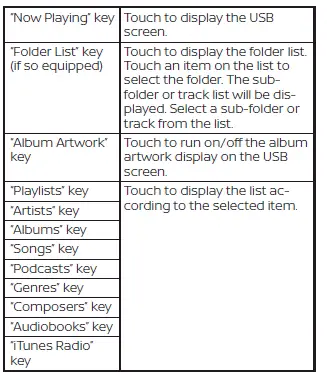
iPod Menu
Touch the "iPod Menu" key on the iPod screen to display the iPod Menu interface, where tracks, playlists, artists, albums, and other categories can be browsed directly through the Nissan Sentra audio system.
Other materials:
Sonar System. Removal and Installation. Sonar Control Unit. Removal and Installation
Sonar Control Unit. Removal and Installation
Removal and Installation
Removal and Installation
REMOVAL
CAUTION:
When replacing the sonar control unit, perform
"ADDITIONAL SERVICE WHEN REPLACING SONAR CONTROL UNIT". Refer to Work Procedure.
Partially
remove the trunk s ...
Distance Sensor
Values on the Diagnosis Tool
Values On The Diagnosis Tool
Note:
The following table includes information (items)
inapplicable to this Nissan Sentra vehicle. For information (items) applicable to this
vehicle, refer to CONSULT display items.
...
Operation
Switch Name and Function
Switch Name
and Function
OPERATION AND DISPLAY OF AUTOMATIC AIR CONDITIONING
SYSTEM
Display: Display in A/C switch assembly
Air conditioning operation status is indicated
on display in A/C switch assembly.
Air conditioni ...