Nissan Sentra B18 (2020-2025) Owner's Manual: Bluetooth streaming audio
If you have a compatible Bluetooth device that supports streaming audio (A2DP profile), you can establish a wireless connection between the Bluetooth device and the Nissan Sentra audio system.
This connection allows you to enjoy music, podcasts, and other audio content stored on your Bluetooth device directly through the Nissan Sentra speakers, providing convenient hands-free entertainment while driving.
To use Bluetooth streaming audio, touch the
 Bluetooth icon on the Launch Bar, then select the “BT Audio� key to activate Bluetooth
audio mode.
Bluetooth icon on the Launch Bar, then select the “BT Audio� key to activate Bluetooth
audio mode.
NOTE:
A cellular phone should not be used while driving so that full attention can be given to vehicle operation. If a Bluetooth device needs to be connected, follow the connecting procedure only when the vehicle is safely parked.
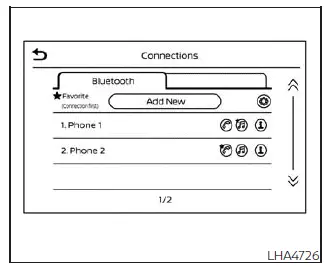
NOTE:
The Bluetooth connecting procedure must be performed while the Nissan Sentra is stationary. If the vehicle begins moving during the procedure, the connection process will be canceled automatically.
To connect a phone or audio device to the Bluetooth Hands-Free Phone System:
Manual Connecting Procedure
1. Select the “Settings� key on the Launch Bar.
2. Touch the “Connections� key.
3. Touch the Bluetooth tab and then touch the “Add New� key.
4. Follow the on-screen instructions to complete pairing.
If a PIN appears on the display, operate the Bluetooth device to enter or confirm the PIN and finalize the connection.
Connecting procedure

Automatic Connecting Procedure
If no phone is currently connected to the system, press and hold the
 button on the steering wheel for less than 1.5 seconds.
After the voice prompt, say “Add Phone.� The system will announce that it is transferring to the add phone settings menu and will begin the pairing process automatically. When a compatible device is detected, a message with a PIN will appear on the screen. Operate the Bluetooth device to complete the pairing process. For additional details, see “Bluetooth connections screen.�
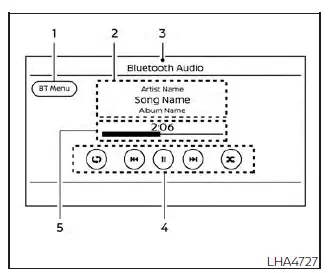
Bluetooth screen
- “BT Menu� key
Depending on the Bluetooth version supported by the connected device, either the “BT Menu� key or the “Connections� key will be displayed. - Track information
Displays available track information such as song title, artist name, and album name. - Audio source indicator
Indicates the currently selected audio source within the Nissan Sentra audio system. - Bluetooth audio operation keys
Touch to control Bluetooth audio playback functions. - Play time and progress bar
Shows the elapsed play time of the current track.The progress bar visually indicates how much of the track has been played.
Bluetooth operation keys
Touch these keys to control Bluetooth audio playback functions such as play, pause, and track selection.
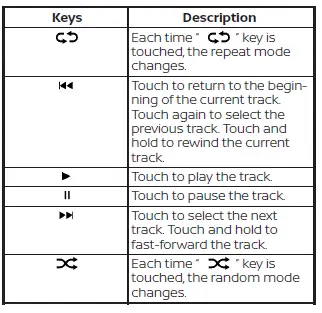
Bluetooth audio operation
The ability to pause, change tracks, fast-forward, rewind, shuffle, or repeat music may vary depending on the connected Bluetooth device.
Some or all of these functions may not be supported by every device used with the Nissan Sentra Bluetooth audio system.
NOTE:
Depending on the connected Bluetooth audio device, certain audio operations may not be available or a short delay may occur before music playback begins.
Activation and playing
A Bluetooth audio device can be played by touching the “Bluetooth� key on the Menu screen or by selecting Bluetooth directly from the Launch Bar.
To pause Bluetooth audio playback, touch the "
 "
key. Touch the "
"
key. Touch the "
 "
key to resume playback.
"
key to resume playback.
Changing folders
To change folders or categories, touch the “BT Menu� key on the Bluetooth audio screen.
Fast-forwarding/rewinding
To fast-forward or rewind a track, press and hold the
 or
or
 buttons on the control panel, or touch and hold the "
 "
or "
"
or "
 "
keys on the display.
"
keys on the display.
Changing play mode
Repeat mode
Touch the "
 "
key on the screen to change the repeat playback mode.
"
key on the screen to change the repeat playback mode.
Random mode
Touch the "
 "
key on the screen to enable or disable random (shuffle) playback.
"
key on the screen to enable or disable random (shuffle) playback.
NOTE:
The available repeat and random playback modes may vary depending on the connected Bluetooth device.
BT Menu
Touch the “BT Menu� key on the Bluetooth audio screen to display the Bluetooth audio menu.
The following menu items may be available depending on device compatibility.
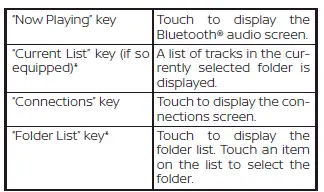
*: Displayed only when available.
NOTE:
Depending on the connected Bluetooth device, the “BT Menu� key may not be displayed on the Nissan Sentra audio screen.
Other materials:
B20bd-96 Battery Current Sensor
Dtc Description
DTC Description
DTC DETECTION LOGIC
DTC No.
CONSULT screen items
(Trouble diagnosis content)
DTC Detection Condition
...
Front Suspension. Preparation. Preparation
Preparation
Special Service Tools
Special Service Tools
The actual shape of the tools may differ from those
illustrated here.
Tool number
(TechMate No.)
Tool name
Description
...
Precaution. Precautions
Precautions
Precaution for Supplemental Restraint System (srs) "air Bag" and "seat Belt Pre-Tensioner"
Precaution for Supplemental Restraint System (SRS) "AIR BAG" and "SEAT BELT PRE-TENSIONER"
The Supplemental Restraint System such as
“AIR BAG� and “SEAT BELT PRE-TENSIONER�,
u ...