Nissan Sentra B18 (2020-2025) Owner's Manual: Siri Eyes Free
Apple Siri Eyes Free personal assistant can be accessed directly from the Nissan
Sentra, allowing drivers to use Siri with reduced distraction. Siri Eyes Free operates
in a dedicated voice-only mode, enabling hands-free interaction while keeping your
attention on the road. After pairing a compatible Apple device with the Nissan Sentra
via Bluetooth, Siri Eyes Free can be activated by pressing the
 button located on the steering wheel.
Siri Eyes Free in the Nissan Sentra is designed to respond exclusively to voice commands, minimizing the need to look at the display while driving.
Siri is a trademark of Apple Inc., registered in the U.S. and other countries.
- Some Siri Eyes Free functions, such as displaying images or opening certain apps, may be limited or unavailable while driving in the Nissan Sentra.
- For optimal performance, always update your Apple device to the latest available software version.
- Keep the interior of the Nissan Sentra as quiet as possible. Closing windows and reducing background noise such as traffic or vibration sounds helps improve voice recognition accuracy.
- For a complete list of supported Siri Eyes Free functions, refer to the official Apple website.
Requirements
Siri Eyes Free is available only on iPhone 4S or later models. Apple devices released before the iPhone 4S are not supported by the Siri Eyes Free system in the Nissan Sentra. Visit www.apple.com/ios/siri for the most current compatibility information.
Siri must be enabled within the iPhone settings prior to use.
If the device uses a lock screen, Siri access must be allowed from the lock screen. Verify this setting on your iPhone before operating Siri Eyes Free.
For best overall results in the Nissan Sentra, always keep your device software updated to the latest version.
Operating Siri Eyes Free
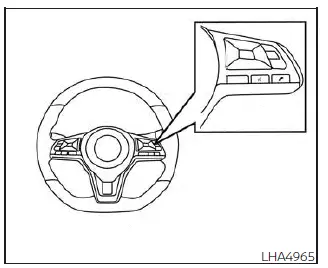
1. Press the
 button for more than 1.5 seconds.
2. Clearly speak your command and listen to the Siri Eyes Free response through the Nissan Sentra audio system.
After Siri Eyes Free is activated, press the
 button again within 5 seconds after Siri finishes speaking to extend the current
session.
button again within 5 seconds after Siri finishes speaking to extend the current
session.
Example 1 - Playing music
1. Press the
 button for more than 1.5 seconds.
2. Say “Play (artist name, song name, etc.).�
3. The Nissan Sentra will automatically switch to Bluetooth Audio or iPod mode* once playback begins. The selected audio mode is determined by the connected iPhone.
* If the iPhone is also connected using a USB cable.
If music playback does not start automatically after Siri Eyes Free ends, manually change the track or audio source to resume playback.
NOTE:
For best performance, use the native Apple Music application. Music control behavior may vary when using Podcasts, Audiobooks, or third-party audio apps, as these are controlled by the iPhone.
Example 2 - Replying to text messages
1. When a compatible iPhone is connected to the Nissan Sentra and “Show Notifications� is enabled in the phone settings, incoming text messages will be displayed on the vehicle screen.
2. After the message is read aloud, press or press and hold the
 button to respond using Siri Eyes Free.
3. After the beep, say “Text message� or a similar command to dictate your reply.
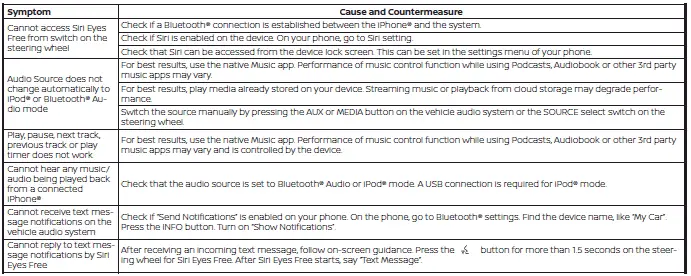
Troubleshooting guide
Other materials:
Component Parts
Exterior Lighting System
Component Parts Location
Component Parts
Location
A.
View of instrument panel
B.
M/T transmi ...
C1623-87 Ecm System
Dtc Description
DTC Description
DTC DETECTION LOGIC
DTC No.
CONSULT screen terms
(Trouble diagnosis content)
DTC detection condition
...
Brake System. Precaution. Precautions
Precautions
Precaution for Supplemental Restraint System (srs) "air Bag" and "seat Belt Pre-Tensioner"
Precaution for Supplemental Restraint System (SRS) "AIR BAG" and "SEAT BELT PRE-TENSIONER"
The Supplemental Restraint System such as
“AIR BAG� and “SEAT BELT PRE-T ...