Nissan Sentra B18 (2020-2025) Owner's Manual: Bluetooth connecting procedure
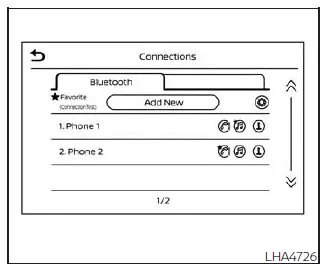
NOTE:
The Bluetooth connecting procedure for the Nissan Sentra must always be performed while the vehicle is stationary. If the vehicle begins to move during the pairing process, the system will automatically cancel the procedure to help reduce driver distraction.
To connect a mobile phone to the Bluetooth Hands-Free Phone System in your Nissan Sentra, follow the steps below carefully.
Bluetooth Connecting Procedure
1. Select the "Settings" key on the Launch Bar of the Nissan Sentra infotainment display.
2. Touch the "Connections" key to access available connection options.
3. Select the Bluetooth tab and then touch the "Add New" key to begin pairing a new device.
4. Follow the on-screen instructions shown on the Nissan Sentra display.
If a PIN code appears on the screen, operate your Bluetooth-enabled device to enter or confirm the displayed PIN to complete the pairing process.

NOTE:
Some cellular phones may require you to manually accept certain permissions in order to fully enable Bluetooth features within the Nissan Sentra system.
During the Bluetooth pairing process, check your cellular phone display for pop-up notifications requesting permission to access contacts or call history.
Granting phonebook access will allow your contacts to be downloaded and displayed within the Nissan Sentra Bluetooth Hands-Free Phone System for easier hands-free calling.
A message may appear on your phone stating that the vehicle’s Bluetooth system would like to access contacts and call history. Select “Allow� or “Yes� to enable full functionality.
Automatic Connecting Procedure
If no phone is currently connected to the Nissan Sentra Bluetooth system, press
and hold the
 button on the steering wheel for less than 1.5 seconds.
After the system prompt, say “Add Phone.� The Nissan Sentra system will announce that it is transferring to the add phone settings menu and will automatically begin the pairing procedure.
When a compatible phone is detected, a PIN message will appear on the screen. Confirm the PIN on your phone to complete the Bluetooth connection process.
Voice commands
Voice commands can be used to conveniently operate the Bluetooth Hands-Free Phone System in the Nissan Sentra without taking your hands off the steering wheel.
Press and hold the
 button for less than 1.5 seconds to open the phone command menu. The available voice
commands include:
button for less than 1.5 seconds to open the phone command menu. The available voice
commands include:
- Call <name>
- Dial <number>
- Recent Calls
- Read/Send Text (if so equipped)
- Siri (if so equipped)
- Voice Assistant (if so equipped)
- Phonebook
- Quick Dial
- Redial
- Select Phone
- Add Phone
- Call <name> Mobile
- Call <name> Home
- Call <name> Office
- Call <name> Main
- Call <name> Other
- Settings
"Call <name>"
Use this command to place a call to a contact stored in your phonebook. Say “Call� followed by the contact’s name.
If the Nissan Sentra system does not recognize the spoken name, it will display a list of similar contacts. After the prompt, speak or select the corresponding list number on the screen to place the call.
"Dial <number>"
This command allows you to place a call by speaking the phone number. Say “Dial� followed by a 7- to 10-digit phone number.
The system will repeat the number for confirmation. Say “Dial� again to place the call, or say “Correction� to re-enter the number.
"Recent Calls"
The following options are available within the “Recent Calls� menu on the Nissan Sentra system:
- Incoming Calls
Say this command to hear or view a list of the last 20 incoming calls. If the call matches a phonebook entry, the contact name will be displayed; otherwise, the phone number will appear.When prompted, speak or touch the list item number to place the call.
Touch the "Next" key to scroll through the incoming call list.
- Outgoing Calls
Say this command to display the last 20 outgoing calls made from the Nissan Sentra. Contact names will appear when available; otherwise, phone numbers are shown.When prompted, speak or touch the item number to place the call.
Touch the "Next" key to continue through the list.
- Missed Calls
Say this command to view the last 20 missed calls. Contact names are displayed when available; otherwise, the phone number is shown.When prompted, speak or touch the list item number to return the call.
Touch the "Next" key to scroll through missed calls.
"Read Text/Send Text" (if so equipped)
Speak this command to access text messaging features available through the Bluetooth Hands-Free Phone System in the Nissan Sentra. This function allows you to listen to incoming text messages and send replies using voice commands, helping you stay connected while keeping your hands on the steering wheel and your focus on driving.
"Phonebook through voice command"
Say "Phonebook" to display a list of guided steps that allow access to contacts stored in your connected mobile device. In the Nissan Sentra, voice-based phonebook commands are organized according to the phone number types saved on the cellular device. For detailed information about how contacts are stored and categorized, refer to the cellular phone owner's manual.
The following voice commands are available when accessing the phonebook in the Nissan Sentra:
- <Say a Contact Name>
- <Say a Contact Name> Main
- <Say a Contact Name> Home
- <Say a Contact Name> Mobile
- <Say a Contact Name> Office
- <Say a Contact Name> Other
"Quick dial"
Speak this command to open the Quick Dial menu on the Nissan Sentra display. After the system prompt, say the item number or select it on the screen to immediately place a call, providing faster access to frequently used contacts.
"Redial"
Speak this command to call the most recently dialed phone number. After the system prompt, say "Redial" and the Nissan Sentra will automatically dial the last outgoing call.
The display will show "Redialing <name/number>". If the number exists in the phonebook, the contact name will be shown; otherwise, the phone number being redialed will appear on the screen.
"Select Phone"
Speak this command to open the Connections menu, where you can choose between multiple paired phones stored in the Nissan Sentra Bluetooth system.
"Add Phone"
Speak this command to access the Connections menu and begin pairing an additional Bluetooth-enabled phone with the Nissan Sentra. This allows multiple drivers to store their devices for convenient switching.
"Settings"
Speak this command to enter the System Voice Settings menu. The Nissan Sentra will exit Voice Recognition mode and display available configuration options on the screen. Touch one of the following options to adjust system behavior:
- Beep Only for Opening Prompt
When the "ON" key is selected, the indicator light illuminates and the system voice guidance is disabled. Only a confirmation tone will sound when the Bluetooth Hands-Free Phone System is activated. To restore voice guidance, touch the "ON" key again and the indicator light will turn off. - Best Match List
If the Nissan Sentra system cannot clearly recognize a spoken contact name or dialed number, it will provide a list of similar-sounding results to improve accuracy.To disable this feature, touch the "ON" key and the indicator light will turn off. To re-enable the Best Match List, touch the "ON" key again and the indicator light will illuminate.
Other materials:
P0300 Misfire
Dtc Description
DTC Description
When a misfire occurs, engine speed will fluctuate. If the engine
speed fluctuates enough to cause the crankshaft position (CKP) sensor signal to
vary, ECM can determine that a misfire is occurring.
...
Dtc Diagnosis [8ch Can Gateway (8ch Can Gateway)]
B2600-42 Config Error
Dtc Description
DTC Description
DTC DETECTION LOGIC
DTC No.
CONSULT screen terms
(Trouble diagnosis
content)
DTC detected
...
C1608-54 Control Unit
Dtc Description
DTC Description
DTC DETECTION LOGIC
DTC No.
CONSULT screen terms
(Trouble diagnosis content)
DTC detection condition
...