Nissan Sentra B18 (2020-2025) Owner's Manual: Bluetooth connections screen
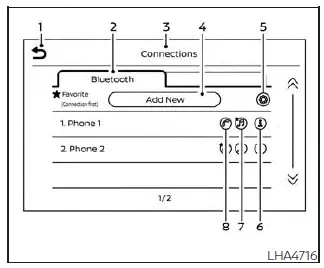
- "
 "
(back) key
"
(back) key - Bluetooth tab
- Connections screen
- "Add New" key
- "
 "
(settings) key
"
(settings) key - "
 "
(info) key
"
(info) key - "
 "
(Bluetooth Audio connection) key
"
(Bluetooth Audio connection) key - "
 "
(Bluetooth Hands-Free Phone
"
(Bluetooth Hands-Free Phone
System connection) key
Use the Connections screen in the Nissan Sentra to review paired devices, adjust Bluetooth preferences, and manage wireless connections conveniently from the center display.
To access the Connections screen, press the
 MENU button on the control panel.
Touch the "Connections" key on the screen, then select the Bluetooth tab to view all available Bluetooth options for your Nissan Sentra.
The paired phone will be added to the list on the Bluetooth connections screen.
Touching the name of another device on the list will switch the connected device, allowing the Nissan Sentra to change the active phone or audio source.
"
 "
(back) key
"
(back) key
Touch the "
 "
key to return to the previous screen.
"
key to return to the previous screen.
Connecting Bluetooth
For step-by-step guidance on pairing a cellular phone or device with the Nissan Sentra Bluetooth Hands-Free Phone System, refer to the section titled "Bluetooth connecting procedure".
NOTE:
Some cellular phones or electronic devices may generate interference or a buzzing sound from the audio system speakers. Placing the device in a different location inside the Nissan Sentra may help reduce or eliminate this noise.
Bluetooth tab
This tab displays up to six Bluetooth devices. If six devices are already registered in the Nissan Sentra, one device must be deleted before adding a new one.
"Add New" key
Touch this key on the screen to pair and connect a new Bluetooth-enabled device to the Nissan Sentra.
"
 "
(Bluetooth settings) key
"
(Bluetooth settings) key
Touch the "
 "
key on the screen to display additional Bluetooth configuration options.
"
key on the screen to display additional Bluetooth configuration options.
- Bluetooth
Touch this option to turn the Bluetooth connection on or off in the Nissan Sentra. - Favorite (Connection first)
Touch this option to set which device connects automatically first when multiple devices are paired with the vehicle.Turn the "
 "
key on or off to assign a device as the preferred connection.
"
key on or off to assign a device as the preferred connection.Turn the "
 "
key on or off to remove the device from favorite status.
"
key on or off to remove the device from favorite status. - Pin
Touch this option to customize the Bluetooth PIN code used by the Nissan Sentra.Enter a four-digit number, then touch the "OK" key to save the new PIN.
"
 "
(info) key
"
(info) key
Touch the "
 "
key on the screen to view detailed information about the selected cellular phone
or to delete a paired device.
"
key on the screen to view detailed information about the selected cellular phone
or to delete a paired device.
Touch the "Delete" key to remove a paired device, then select "Yes" when the confirmation message appears.
"
 "
(Bluetooth Hands-Free
"
(Bluetooth Hands-Free
Phone System connection) key A list of connected devices will be displayed on
the screen. Touch the "
 "
key next to a device name to connect it to the Hands-Free Phone System. If the device
is marked as a favorite, a star icon will be shown. Touch the key again to disconnect
the device without removing it from the Nissan Sentra list.
"
key next to a device name to connect it to the Hands-Free Phone System. If the device
is marked as a favorite, a star icon will be shown. Touch the key again to disconnect
the device without removing it from the Nissan Sentra list.
"
 "
(Bluetooth Audio connection) key
"
(Bluetooth Audio connection) key
A list of connected devices will be displayed on the screen. Touch the "
 "
key next to a device name to connect it for Bluetooth Audio playback. If the device
is set as a favorite, a star icon will appear.
"
key next to a device name to connect it for Bluetooth Audio playback. If the device
is set as a favorite, a star icon will appear.
Touch the key again to disconnect the device from Bluetooth Audio.
The device will remain listed in the system and will not be removed from the paired devices list of the Nissan Sentra.
Phone and text message settings
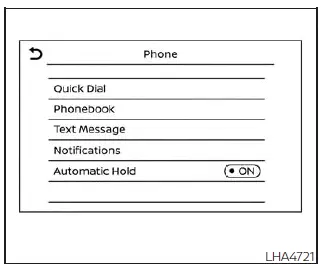
The Bluetooth Hands-Free Phone System settings in the Nissan Sentra can be customized
to match individual driver preferences. To access the "Phone" settings menu, press
the
 MENU button on the control panel. Touch the "Settings" key on the display, then
select the "Phone" key to open the phone and messaging configuration menu.
MENU button on the control panel. Touch the "Settings" key on the display, then
select the "Phone" key to open the phone and messaging configuration menu.
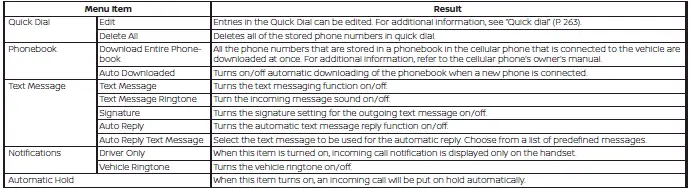
The following options are available:
Volume & beeps
Several methods are available to personalize audio feedback and alert volumes for phone and messaging functions in the Nissan Sentra.
Volume & Beeps
The Volume & Beeps screen can be accessed by pressing the
 MENU button on the control panel, touching the "Settings" key on the screen, and
selecting "Volume & Beeps". To adjust the volume levels for the available options,
touch the "-" or "+" keys displayed on the screen.
MENU button on the control panel, touching the "Settings" key on the screen, and
selecting "Volume & Beeps". To adjust the volume levels for the available options,
touch the "-" or "+" keys displayed on the screen.
The available settings are:
- Ringtone
Adjusts the volume level of the ringtone for incoming calls in the Nissan Sentra. - Outgoing Call
Adjusts the volume level during outgoing calls. - Voice Prompt Vol.
Controls the volume level of system voice guidance and spoken prompts. - Text-to-speech Vol.
Adjusts the playback volume of spoken text messages. - Button Beeps
Enables or disables button confirmation sounds and alerts for prohibited operations.
Volume Settings
The Volume settings screen can also be accessed by pressing the
 button on the control panel, then touching the "Volume" key on the screen. Use the
"-" and "+" keys to fine-tune the volume of the following options.
button on the control panel, then touching the "Volume" key on the screen. Use the
"-" and "+" keys to fine-tune the volume of the following options.
The available settings are:
- Ringtone
Adjusts the volume level of the ringtone for incoming calls. - Outgoing Call
Adjusts the volume level of outgoing calls.
The available settings are:
- Ringtone
Adjusts the volume level of the ringtone for incoming calls. - Outgoing Call
Adjusts the volume level of outgoing calls.
iPod/iPhone
"Made for iPod", "Made for iPhone", and "Made for iPad" indicate that an electronic accessory has been specifically designed to connect to an iPod, iPhone, or iPad and has been certified by the developer to meet Apple performance standards.
Apple is not responsible for the operation of this device or its compliance with applicable safety and regulatory requirements.
Please note that using this accessory with an iPod, iPhone, or iPad may affect wireless performance in the Nissan Sentra.
iPad, iPhone, iPod classic, iPod nano, iPod shuffle, and iPod touch are trademarks of Apple Inc., registered in the United States and other countries. Lightning is a trademark of Apple Inc.
Other materials:
Side Radar Right (side Radar Rh)
C1e80-44 Control Unit
Dtc Description
DTC Description
DTC DETECTION LOGIC
DTC No.
CONSULT screen terms
(Trouble diagnosis
content)
DTC detecti ...
Intelligent Key System
System Diagram
System Diagram
System Description
System Description
Signal name
Input
Output
Description
...
Ecv (electrical Control Valve)
Diagnosis Procedure
Diagnosis Procedure
CHECK ECV POWER SUPPLY
Ignition switch OFF.
Disconnect A/C compressor connector.
Ignition switch ON.
...