Nissan Sentra B18 (2020-2025) Service Manual: Basic Inspection
Diagnosis and Repair Workflow
Work Flow
Work Flow
OVERALL SEQUENCE
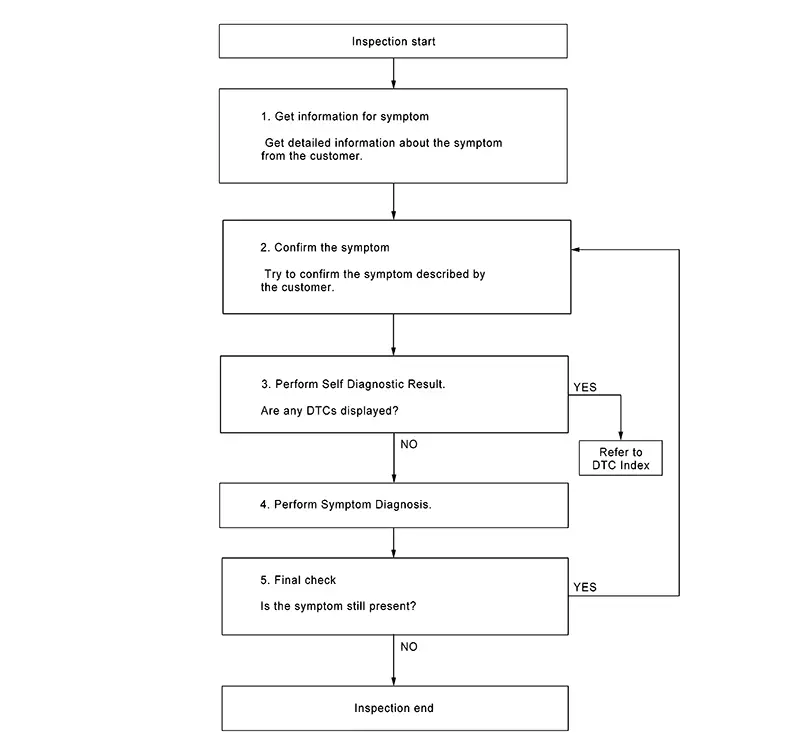
DETAILED FLOW
-
GET INFORMATION FOR SYMPTOM
-
Get detailed information from the customer about the symptom (the condition and the environment when the incident/malfunction occurred).
GO TO 2.
-
-
CONFIRM THE SYMPTOM
-
Try to confirm the symptom described by the customer. Verify relation between the symptom and the condition when the symptom is detected.
GO TO 3.
-
-
PERFORM SELF DIAGNOSTIC RESULT
-
 CONSULT
-
Ignition switch ON and wait for 2 seconds or more.
-
Select "Self Diagnostic Result" mode of "MULTI AV".
-
Are any DTCs displayed?
YES >>Refer to DTC Index.
NO >>GO TO 4.
-
-
PERFORM SYMPTOM DIAGNOSIS
-
Refer to Symptom Table.
GO TO 5.
-
-
FINAL CHECK
-
Refer to symptom described by the customer in step 1.
Is the symptom still present?
YES >>GO TO 2.
NO >>Inspection End.
-
Additional Service When Replacing Av Control Unit
Work Procedure
Work Procedure
CAUTION:
During the procedure, maintain the following conditions:
-
Connect the AC adapter to the CONSULT.
-
Connect the CONSULT to the internet (Wi-Fi or cable).
-
Make sure that ASIST on the CONSULT has been synchronized (updated) to the current date and all C-III plus software updates (if any) have been installed.
-
Turn OFF all external Bluetooth® devices (cell phones, printers, etc.) within range of the CONSULT and the VI. If Bluetooth® signals are within range of the CONSULT during reprogramming, reprogramming may be interrupted.
-
Turn OFF all electric loads.
-
Connect a battery maintainer or smart charger set to reflash mode or a similar setting to ensure the battey voltage stays between 12.0 V and 15.5 V.
-
READ AND SAVE VIN DATA
-
CONSULT
-
Select "Diagnosis (One System)", then "MULTI AV".
-
Select "Work support", then perform “SAVE VIN DATA�.
-
After “SAVE VIN DATA� is complete, select "Home".
Note:
If the VIN data could not be saved, you will need to manually enter the VIN data in Step 8.
-
GO TO 2.
-
-
READ AND SAVE CONFIGURATION
-
CONSULT
-
Select "Re/programming, Configuration".
-
Confirm the correct VIN number, then select "MULTI AV".
-
Select "Before ECU Replacement" under "Nissan Sentra Vehicle CONFIGURATION".
-
Record all "Setting Values�, select "Save", then select "End".
Note:
If the Nissan Sentra vehicle configuration could not be saved, you will need to manually enter the vehicle configuration in Step 6.
-
GO TO 3.
-
-
REPLACE AV CONTROL UNIT
-
Replace AV control unit. Refer to Removal and Installation.
GO TO 4.
-
-
REPROGRAM AV CONTROL UNIT
-
CONSULT
-
Select "Re/programming, Configuration".
-
Confirm the correct VIN number is populated, then select "Confirm".
-
Select "Other Operation", then "MULTI AV".
-
Select "After ECU Replacement" under "Programming (Blank ECU)".
-
Select "Manual selection", then review the table below to find the applicable "ROM Data ID" for the Nissan Sentra vehicle you are working on.
Model
Bose system
Speaker count
Destination
ROM Data ID
Sentra
Base
6 Speaker
USA/CAN
283C2 9AU0A
BOSE
8 Speaker
283C2 9AU1A
-
Select the applicable "ROM Data ID" and confirm that the information matches the Nissan Sentra vehicle you are working on.
-
Follow the on screen instructions and wait for the data transfer to complete, then follow the on screen instructions to erase the DTCs.
-
Confirm the before and after part numbers are different, follow on screen instructions to print the results, then select "Home".
-
GO TO 5.
-
-
WRITE THE CONFIGURATION FROM SAVED DATA (FROM READ/SAVE)
- Note:
If the Nissan Sentra vehicle configuration could not be saved in Step 2, GO TO 6 to manually enter the VIN data.
CONSULT-
Select "Re/programming, Configuration".
Note:
Be sure to read all of the precautions.
-
Confirm the correct Nissan Sentra vehicle information is populated, then select "Confirm".
-
Confirm the correct "Saved Data Detail", then select "Confirm".
-
Confirm all "Setting Values" are correct, then select "OK".
-
After configuration has been successfully written, select "End".
-
GO TO 7.
- Note:
-
WRITE CONFIGURATION MANUALLY(MANUAL SELECTION)
-
CONSULT
-
Select "Re/programming, Configuration".
-
Confirm the correct VIN is populated, then select "Confirm".
-
select "MULTI AV", then "After ECU Replacement" under "Nissan Sentra Vehicle CONFIGURATION".
-
Select "Manual selection" and use the drop down menu to select the values that were recorded in Step 2.
-
Confirm the correct "Setting Values", select "OK".
-
After configuration has been successfully written, select "End".
-
GO TO 7.
-
-
WRITE THE VIN FROM SAVED DATA(FROM READ/SAVE)
- Note:
If the VIN Data could not be saved in Step 1, GO TO 8 to manually enter the VIN data.
CONSULT-
Select "Diagnosis (One System)", then "MULTI AV".
-
Select "Work support", then perform “WRITE VIN (SAVED DATA)�.
-
Confirm the correct VIN number is displayed, then select "Start".
-
Work End.
- Note:
-
WRITE THE VIN MANUALLY (MANUAL INPUT)
-
CONSULT
-
Select "Diagnosis (One System)", then "MULTI AV".
-
Select "Work support", "VIN REGISTRATION�, then select "Start".
-
Type VIN number into "VIN (1ST TIME)" and "VIN (2ND TIME)" fields, then select "Start".
-
Select "READ VIN" to verify the VIN was written successfully, then select "End".
-
Work End.
-
Other materials:
Operation
Vehicle-To-Vehicle Distance Control Mode Function
Operation
Operation
SWITCH NAME AND FUNCTION
No.
Switch name
Description
...
B2202-11 Fuel Sender
Dtc Description
DTC Description
DTC DETECTION LOGIC
DTC No.
CONSULT screen terms
(Trouble diagnosis
content)
DTC detected condition
...
Ecu Diagnosis Information. Ecm, Ipdm E/r, Bcm, Intelligent Key Unit
Ecm, Ipdm E/r, Bcm, Intelligent Key Unit
List of Ecu Reference
List of ECU
Reference
ECU
Reference
ECM
Values on the Diagnosi ...